


x1MEASURE
The ultimate audio measurement app for the iPad!

Coming soon!
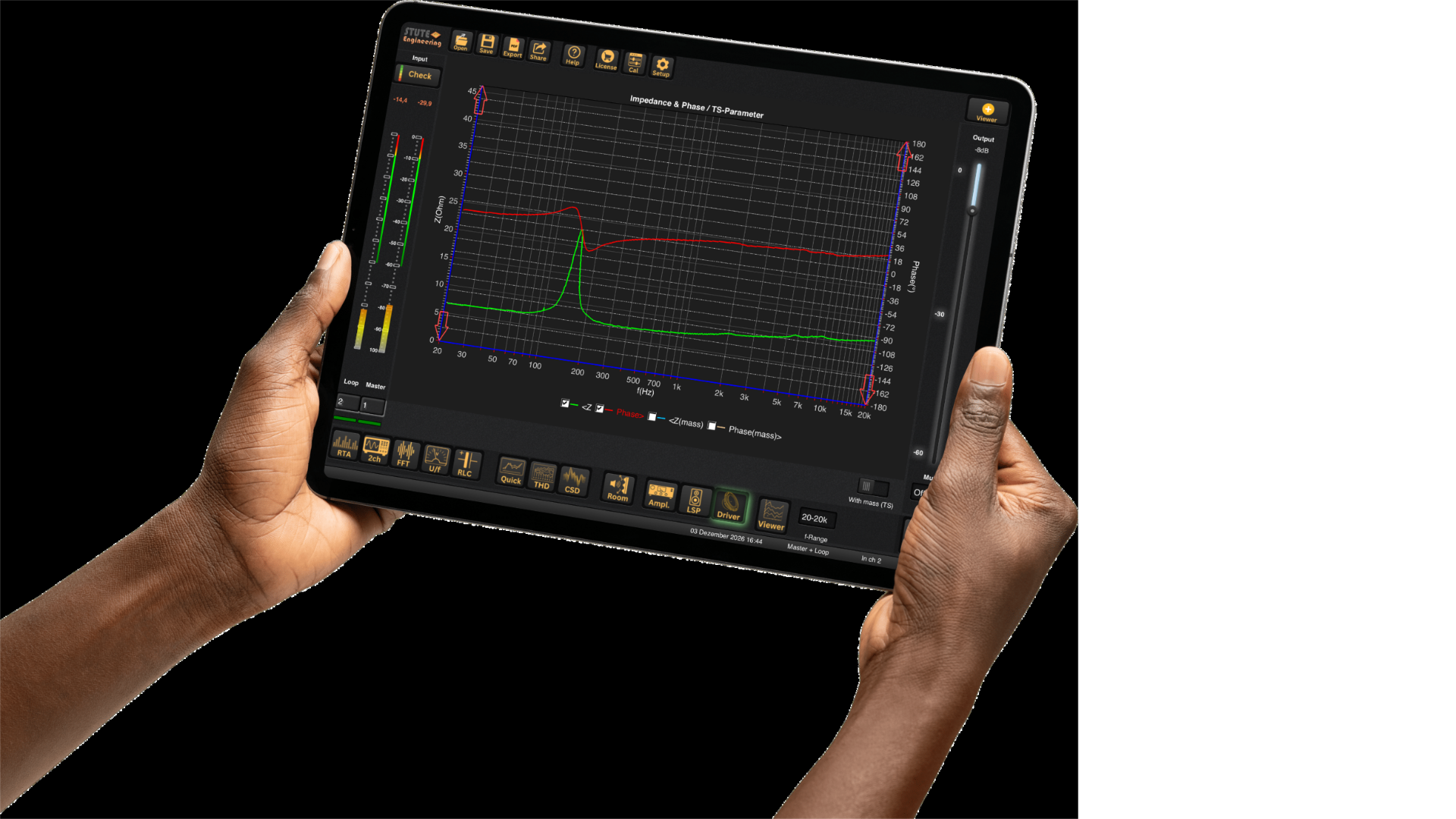
Simply measure accurately.
With the preset parameters, you’ll always take accurate measurements. Simply select the measurement mode and press the ‘RUN’ button. No need for complicated settings!

Nothing’s missing!
x1MEASURE offers a very wide range of electrical and acoustic measurement functions. Combined with the compact hardware, this provides you with a highly capable mobile audio measurement system.
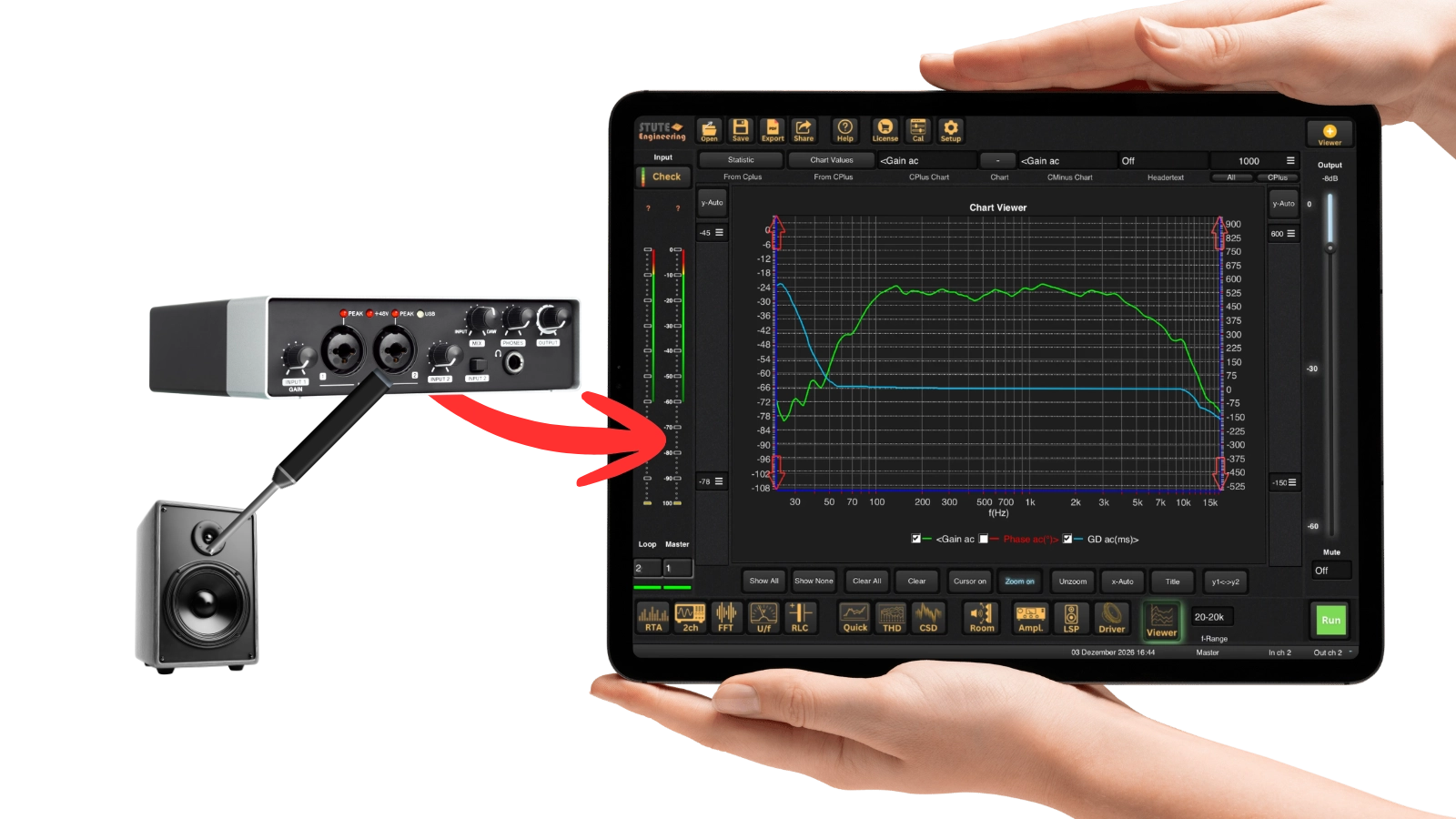
Take measurements like the pros using standard hardware.
Use standard USB audio interfaces and measurement microphones to achieve highly accurate results. This means you do not need to rely on expensive specialist equipment.
Highlights
- Wide range of measurement functions: from multimeters and frequency response to room acoustics
- Extremely handy and precise measurement system
- Clearly structured user interface
- Wide range of applications: hi-fi, car audio, PA and home cinema
- Save money by using standard sound cards and measurement microphones
- Share measurement results & export to PDF
- Display different types of measurements in a single chart
- Scale, zoom, normalise, subtract...
- ...
Description
x1MEASURE is the ultimate mobile audio measurement suite. It includes standard measurement functions such as RTA, 2-channel scope and FFT, as well as specialised functions for measuring loudspeakers and amplifiers. It also includes measurements of room acoustics (RT60, C80, etc.) and loudspeaker Z/Thiele-Small parameters. To do this, it uses a standard USB sound card (with at least 2 adjustable inputs).
Why at least 2 audio interface inputs? Some measurement types require a second measurement channel, the reference channel (loop). In this channel, the output signal is fed directly back into the free input.
Conenct audio interface with iPad
iPAD with Lightning Port
Use the Apple ‘USB Camera Adapter’ and a USB hub with a mains adapter or a power bank to power the USB sound card when using it with the iPad. It doesn’t matter whether the sound card has a USB-A or USB-C port.
iPAD with USB-C Port
Connect the USB audio interface (USB-A with adapter) directly to the iPad. If the interface is not powered, use a USB-C hub with a mains adapter or a power bank to supply power directly to the audio interface.
Test it for free
Test how your hardware works with the app in DEMO mode. The 2-channel oscilloscope and the signal generator are freely available, so you can test data capturing of both interface channels.

Functions
- Real-Time Analyser (RTA)
- 2-channel oscilloscope
- FFT spectrum analyser
- Multimeter: voltage, frequency, SPL
- Component tester: R-L-C
- Frequency response, phase, group delay: amplifiers, preamplifiers, EQ, audio DSP, etc.
- Frequency response, phase, group delay: loudspeakers
- Waterfall plot: loudspeakers
- Distortion frequency response (THD)
- Impedance & Phase
- Thiele Small Parameter
- Reverberation time RT60
Clarity C50/C80
- Combining measurement curves of different types
- Cursor measurement
- Subtraction, normalisation
Signal output
- Signal generator (sine wave, logarithmic sweep, pink noise, square wave)
- Level: 0 dBFS to -60 dBFS
Archive
- Save measurement
- Share measurement graph (email, AirDrop, Notes, etc.)
- Export measurement graph as a PDF
Calibration
- Precise measurement of microphone SPL
- Microphone correction (0° & 90°)
- AC voltage measurement (mV, dBu, dBV)
- Calibrate audio interface
- Calibrate Z measurement
Viewer functions (combine different measurement types)
- Text entry per chart
- Normalise charts
- Subtract charts
- Chart statistics
- Cursor with delta display
- Zoom
User interface

Output level of the test signal
Set the output level here within the range from 0 dBFS to -60 dBFS.
Input level
Display of input levels in dBFS for the measurement and reference channels (loop). The green area represents the target range. This varies depending on the selected measurement mode.
Set the measurement and loop channel (reference)
Use this setting to specify the sound card input for the measurement channel (Master) and the reference channel (Loop).
Tip: The software supports sound cards with more than 2 channels.
Select measurement type
Press a button to select what you want to measure. The background of the selected button will light up green.
Show/hide measurement
Use the tick box to hide and show measurement curves.
Start measurement
Press the ‘Run’ button to start the measurement.
Add measurement curves to the ‘Viewer’
The measurement curves currently on display are added to the VIEWER module.
Zoom / Un-Zoom
Zoom: To enlarge a section, simply drag a rectangle from left to right with your finger across the relevant area.
Unzoom: Dragging any rectangle from right to left will restore the full view of the measurement curve.

x1MEASURE
- System requirements
- iPad with iOS 26 or higher
- Audio Interface
- USB Audio Interface (48kHz Samplerate)
- Min 2 inputs (min 1 for mic.), Input Gain Regler
- Phones output with gain control
- XLR microphone connector (with 48V power supply, if mic. requieres it)
- Accessory
- Measurement microphone with XLR connector
- Optional x1UNI universal interface for easy test of driver, x-over or amplifier.
